
Have you ever tapped a Threads, Instagram, or Facebook link on a Samsung or Android phone, only to have it open in the browser instead of the app? This often forces you to log in again and makes the experience much worse.
The issue can usually be fixed with a few Android settings. Follow the steps below to make social links open directly in their apps again.
Why do links open in the browser?
This usually happens because the app’s Open supported links setting is not enabled correctly. When Android is not sure which app should handle a URL, it falls back to the browser. You need to tell the phone that Threads, Instagram, and Facebook URLs should be opened by their matching apps.
Step-by-step setup
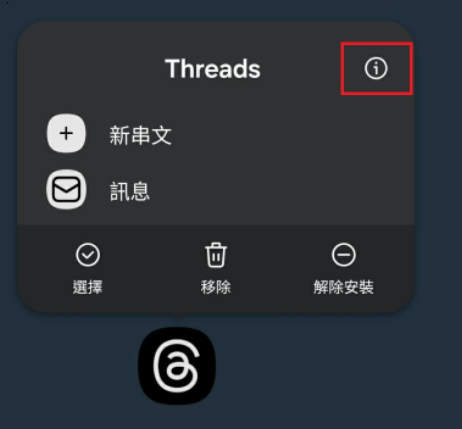
Step 1: open the app settings page. From the phone home screen, find the Threads app and tap the app info icon to open the Threads settings page.
Step 2: enable supported links.
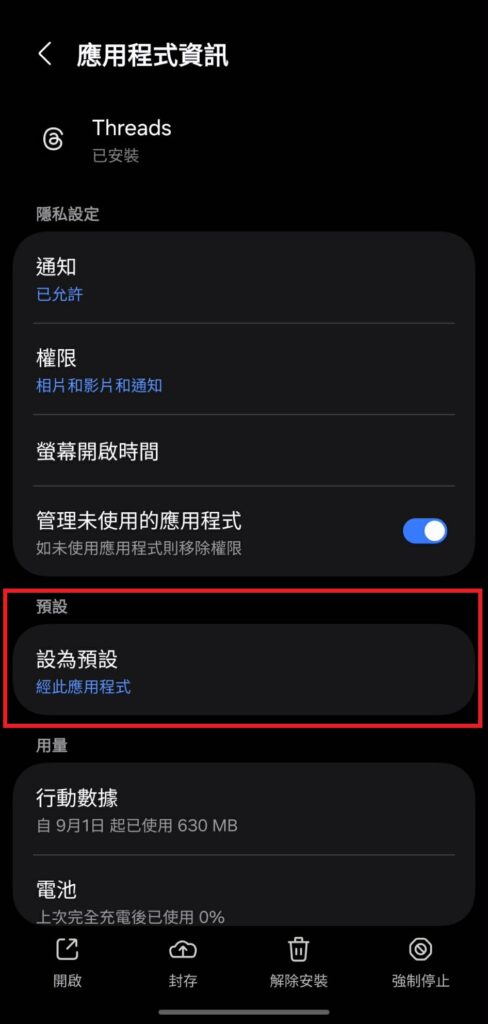
- Tap Set as default.
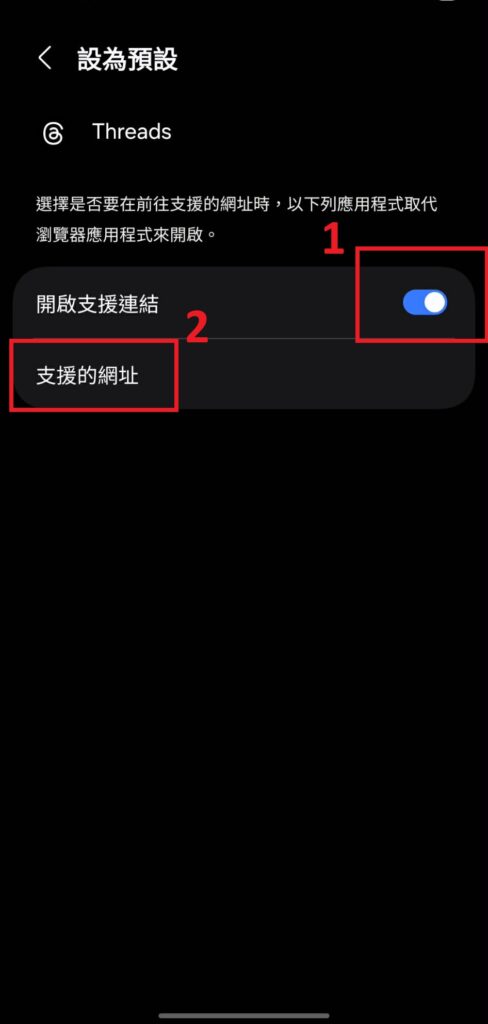
- Make sure Open supported links is turned on.
- Tap Supported web addresses.
- Confirm that all related URLs, such as
threads.netandwww.threads.net, are enabled.
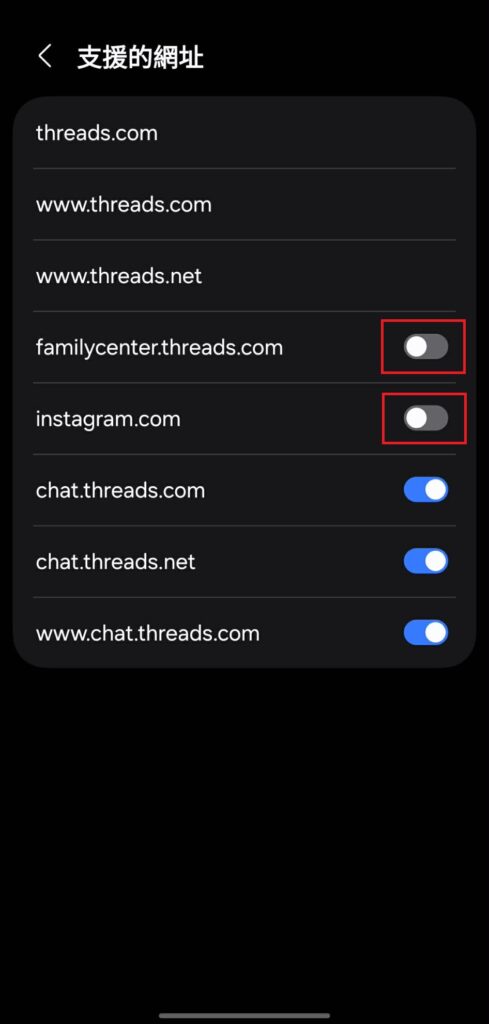
Step 3: repeat the same setting for Facebook and Instagram. Open the app settings page for Facebook and Instagram, then confirm that Open supported links and all supported web addresses are enabled.
After these settings are enabled, tapping links from Threads, Instagram, or Facebook should open the matching app directly instead of sending you to the web version in a browser.